See where your time goes. Make room for focused work.
ClockZen quietly records the apps and websites you use on your Mac, in Chrome, and on Android,
then turns them into a clear daily report. No timers to remember, no spreadsheets.
Free, no card required. Automatic tracking needs the Mac app, Chrome extension, or Android app.
Sample data
Where ClockZen tracks
macOSDesktop app · Apple silicon and Intel
ChromeBrowser extension · early build
AndroidApp with Usage Access · APK
WebReports and focus timer in any browser
An honest record of your working day
Most people guess where their hours went. ClockZen measures it from the apps you actually
use, then gets out of the way.
Reports
Your week, accounted for
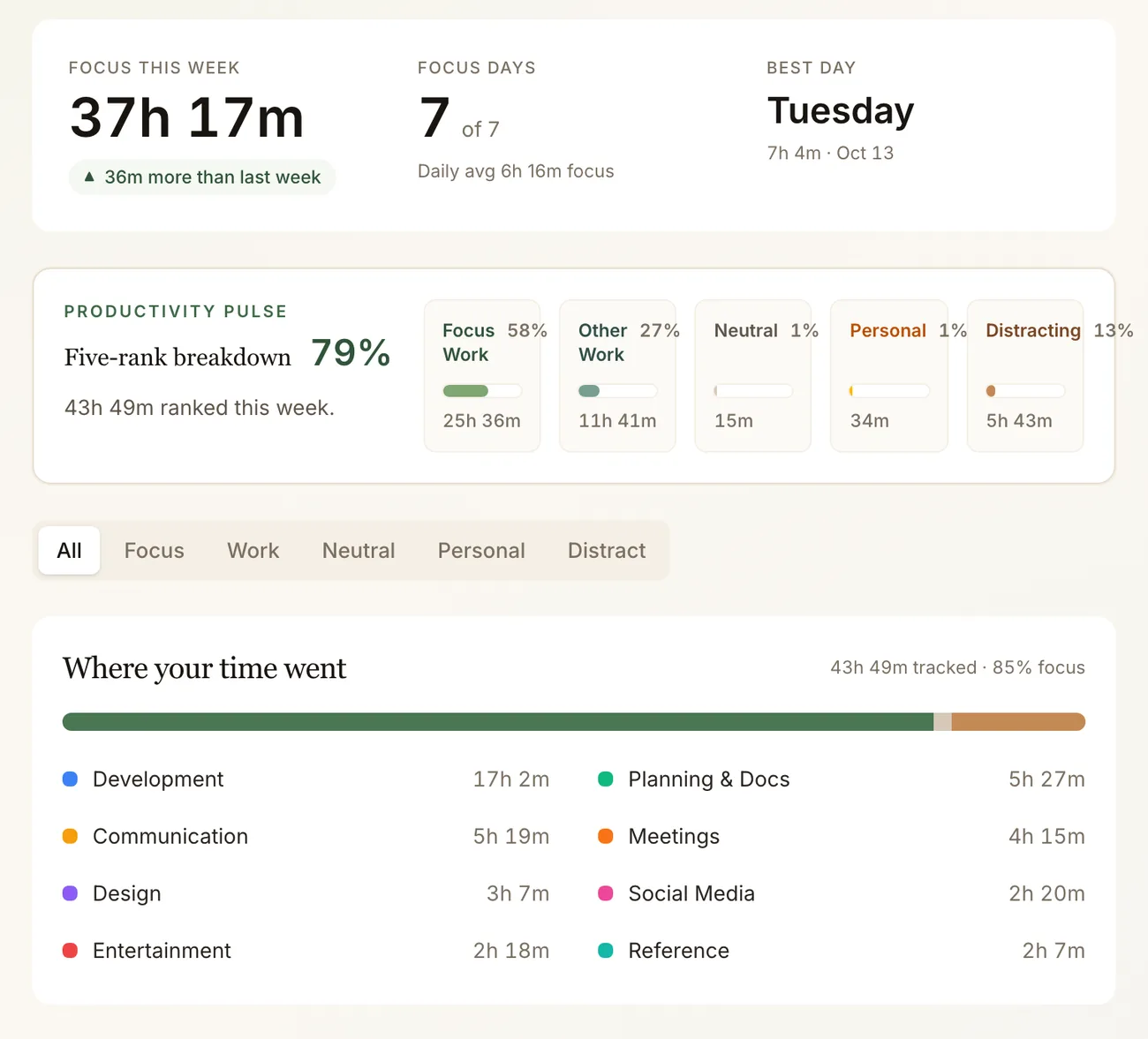
ClockZen turns raw activity into a report you can read in a glance: total tracked time, your best day, and how much of it went to work that matters. Daily, weekly, monthly, and yearly views show whether the pattern is improving.
Today, week, month, and year reports
Productivity Pulse across five ranks you control
Time per category and per app or site
Sample data
Apps & websites
You decide what counts as focus
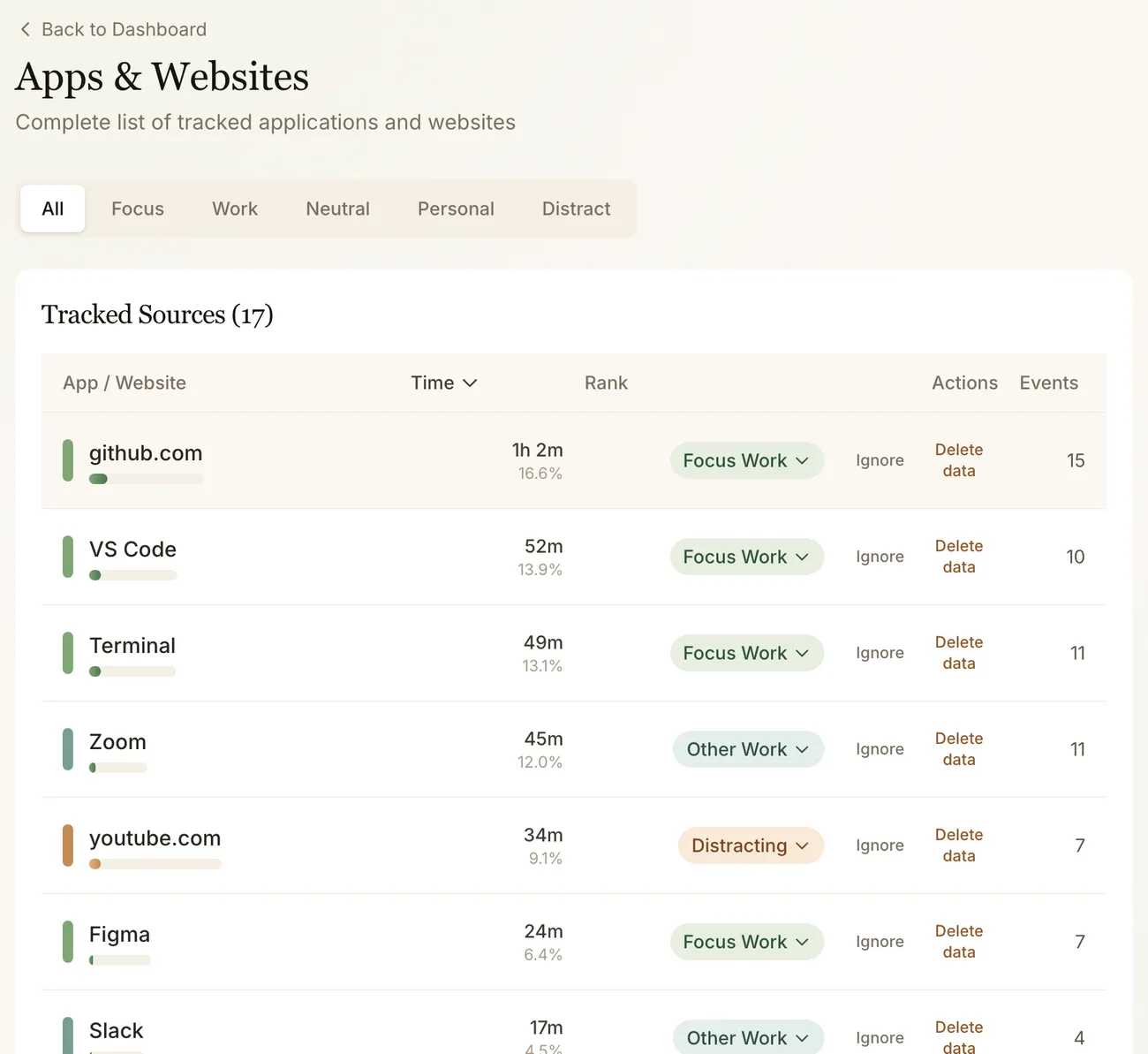
Every app and domain ClockZen sees gets a rank: Focus Work, Other Work, Neutral, Personal, or Distracting. Change any of them, ignore a source entirely, or delete everything tracked for it. Your reports follow your rules, not ours.
Re-rank or recategorize any source
Ignore sources you never want counted
Delete tracked data per source
Sample data
Focus sessions
Make room for deep work
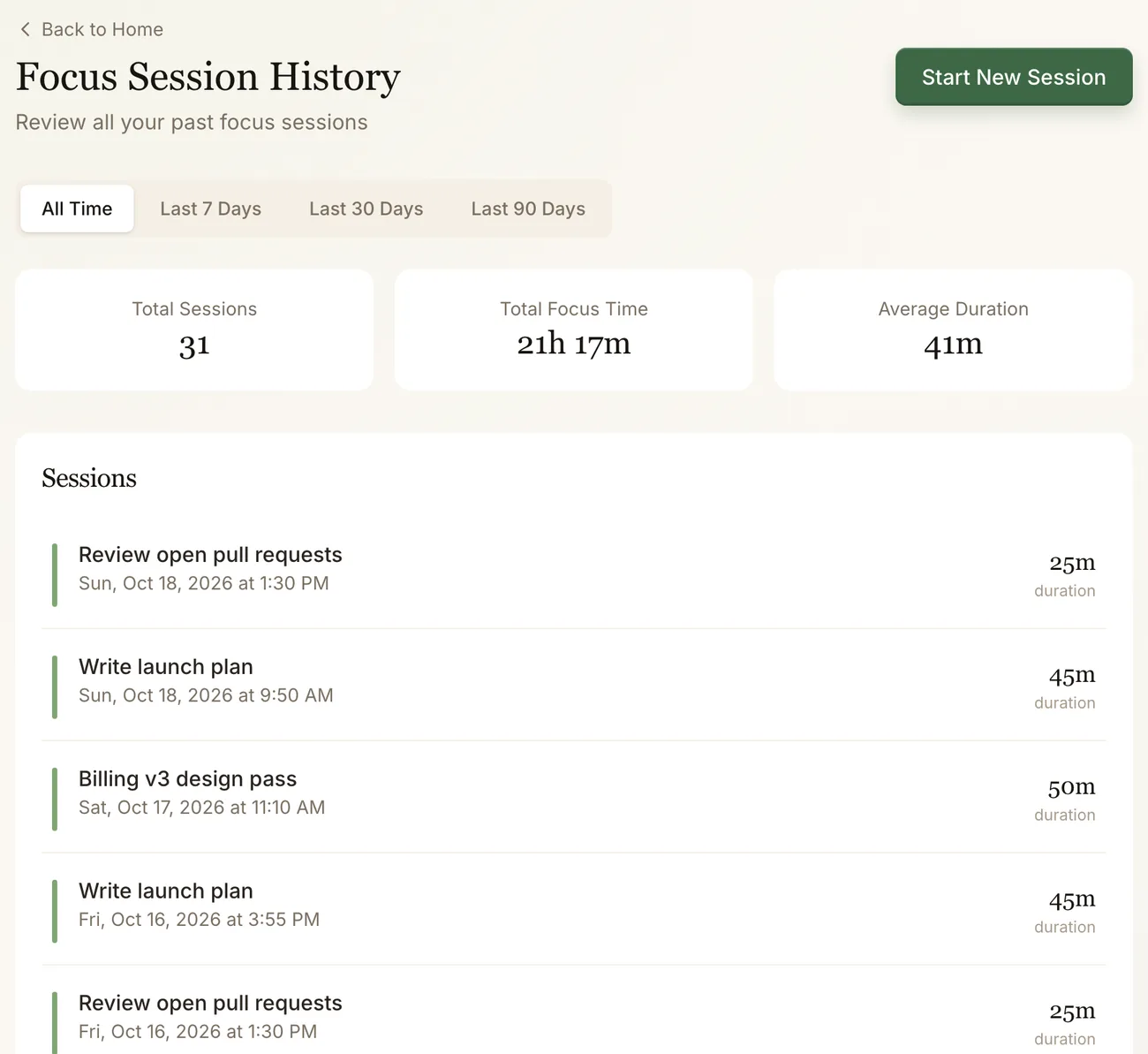
Start a focus session with an intention and a length. In the Mac app, a session can block the apps and sites you choose while it runs. Finished sessions land in your focus history next to the activity they protected.
Pomodoro cycles with configurable lengths
App and site blocking in the Mac app
Focus history with every completed session
Sample data
Keeps tracking offline
The desktop app queues activity while you are disconnected and syncs when the network comes back.
Alerts and time budgets
Set a limit for a distracting site or a goal for focused time and get notified when you cross it.
Privacy filters
Sensitive domains covered by ClockZen privacy filters are dropped before they reach your reports.
Optional accountability
Share check-ins with people you choose. Nothing about your activity is shared unless you set it up.
Set up in three steps
The first report shows up as soon as a tracker has seen a few minutes of work.
01
Create your account
Sign up in the web app with an email and password. No card, no trial clock.
02
Install a tracker
Download the Mac app, add the Chrome extension, or install the Android app, then sign in once.
03
Work as usual
ClockZen records which app or site is in front of you. Open today’s report whenever you want the picture.
Yes, for automatic tracking. The web app shows your reports and runs a focus timer, but a browser tab cannot see which other apps you use. Install the Mac app, Chrome extension, or Android app to record activity.
What exactly does ClockZen record?
The name of the app or website in the foreground, a window or page label, the domain, and how long it was active. It never records screen contents, keystrokes, or message content. The privacy policy lists every category.
Where is my data stored?
Activity syncs to your ClockZen account so reports work across your devices. ClockZen does not sell personal data and does not use your activity for advertising.
Which platforms are supported?
macOS on Apple silicon and Intel, Google Chrome through an early extension build that you load manually, and Android through a directly downloaded APK. Reports work in any modern browser. Windows and Linux desktop apps are not available.
How much does it cost?
Nothing. ClockZen has no paid plan, trial, or checkout today, and signing up never asks for a card.
Can I run ClockZen on my own server?
The ClockZen server is a Node.js API backed by SQLite, but a supported self-hosting guide is not published yet. Today the hosted web app at app.clockzen.com is the supported way to use ClockZen.
Can I delete my data?
Yes. Delete everything tracked for a single app or site from Apps & Websites, or delete your whole account from Settings. If you cannot sign in, use the account deletion page.
Find out where today went.
Create an account, install a tracker, and read your first report before lunch.